
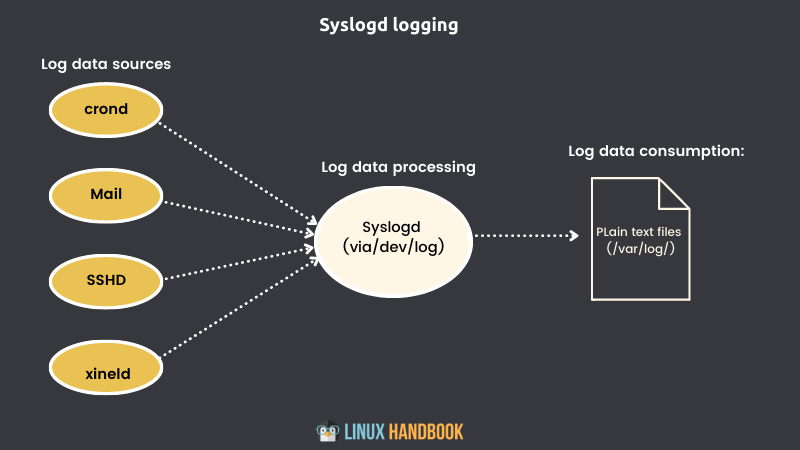
Rsyslog 是一个开源的日志系统守护进程,用于收集、过滤、存储和转发操作系统和应用程序的日志信息。它是一个强大而灵活的日志系统,支持多种协议,包括 TCP、UDP、RELP 协议。您可以使用 Rsyslog 作为您的服务器、应用程序和数据库的集中日志服务。
本指南将向您展示如何在 Debian 12 服务器安装 rsyslog 并进行远程日志设置。
安装 Rsyslog
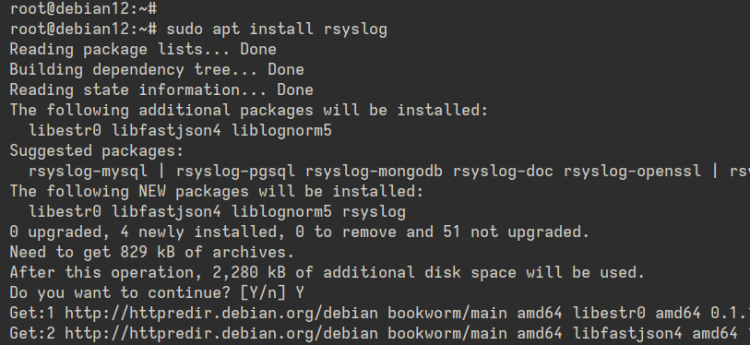
首先,运行以下命令更新 Debian 软件包索引,并安装 Rsyslog 软件包。
sudo apt update
sudo apt install rsyslog
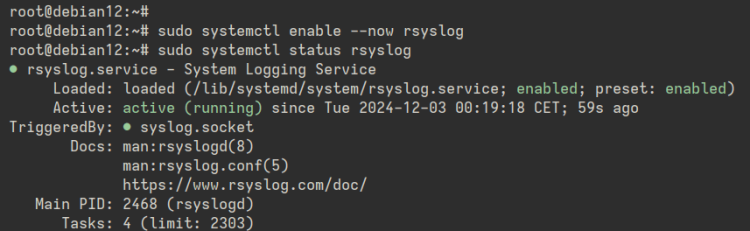
安装完成后,运行下面的 systemctl 命令以启动并启用 rsyslog 服务器。然后验证它是否正常运行。
sudo systemctl enable --now rsyslog
sudo systemctl status rsyslog
如下所示,可以看到 Rsyslog 正在运行并已启用。
设置 UFW
安装 Rsyslog 之后,安装和配置 UFW。为 OpenSSH 服务打开 22 端口,为 Rsyslog 打开 514 端口。然后启动并启用 UFW服务。
使用如下命令安装 UFW
sudo apt install ufw
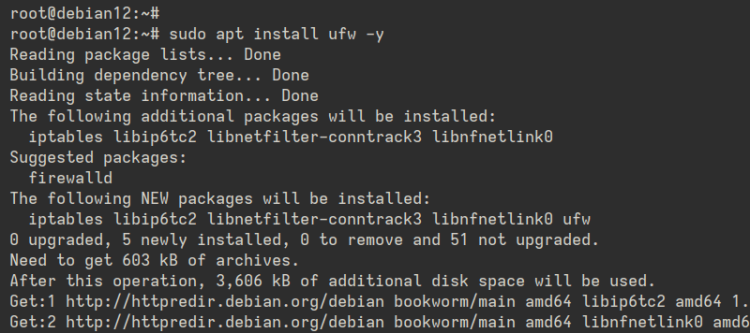
安装UFW后,使用 ufw 命令打开相关端口。
sudo ufw allow OpenSSH
sudo ufw allow 514
使用以下命令启动并启用 UFW。
sudo ufw enable
最后,使用以下命令检查 UFW 状态。
sudo ufw status
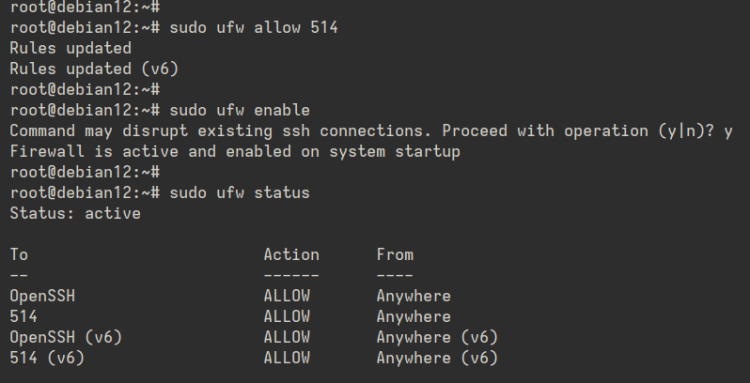
如下所示,您可以看到 UFW 处于活动状态,OpenSSH 和 514 端口已启用。
Rsyslog 从远程服务器接收日志
现在你已经安装了 Rsyslog 并配置了 UFW,接下来设置 Rsyslog 接收来自远程服务器的日志。
首先,使用 nano 编辑 /etc/rsyslog.conf 文件。
sudo nano /etc/rsyslog.conf
取消以下几行注释,启用 imudp 模块,使 syslog 能够登录 Rsyslog 服务器。
# provides UDP syslog reception
module(load="imudp")
input(type="imudp" port="514")
此外,如果您需要通过 TCP 启用 syslog,启用 imtcp 模块,如下所示:
# provides TCP syslog reception
module(load="imtcp")
input(type="imtcp" port="50514")
添加 AllowedSender 选项,并输入允许向 Rsyslog 服务器发送 Syslog 消息的网络子网。
# $AllowedSender - specifies which remote systems are allowed to send syslog messages to rsyslogd
$AllowedSender UDP, 192.168.10.0/24, [::1]/128, *.howtoforge.local, db.howtoforge.local
设置远程服务器的日志模板。在本例中,来自远程服务的日志文件将存储在 “/var/log/servers/server-ip”目录中。
#Custom template to generate the log filename dynamically based on the client's IP address.
$template RemInputLogs, "/var/log/servers/%FROMHOST-IP%/%PROGRAMNAME%.log"
*.?RemInputLogs
保存文件,完成后退出编辑器。
接下来,运行下面命令检查 Rsyslog 配置。
rsyslogd -f /etc/rsyslog.conf -N1
如果没有出现错误,请运行下面的 systemctl 命令以重新启动 rsyslog 服务。
sudo systemctl restart rsyslog

最后,检查 rsyslog 服务状态,确保它正在运行。
sudo systemctl status rsyslog
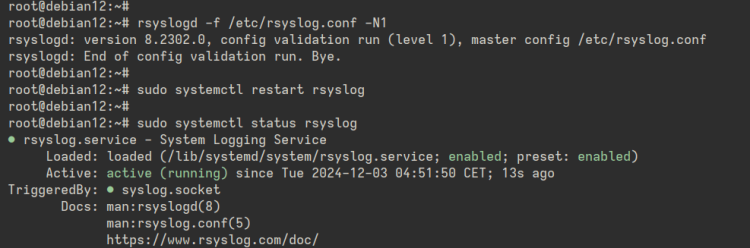
在下面的输出中,可以看到 rsyslog 正在运行。
另外,检查服务器上的端口 514 以确保 Rsyslog 正在运行。
ss -tulpn | grep 514

向 Rsyslog 服务器发送日志
配置了 Rsyslog 远程日志记录后,让我们尝试将日志从 192.168.10.41 发送到 192.168.10.10 服务器。
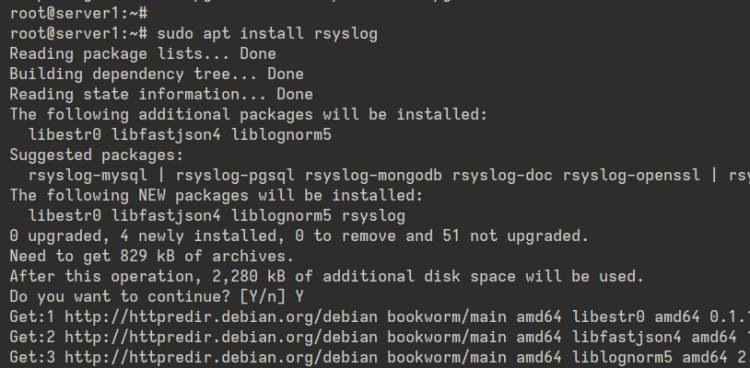
安装 rsyslog 软件包
sudo apt install rsyslog
编辑 /etc/rsyslog.conf 配置文件
sudo nano /etc/rsyslog.conf
添加如下配置,将日志发送到 Rsyslog 服务器 192.168.10.10。在本例中,我们将向 Rsyslog 服务器发送 kernel , cron , authentication 日志。
# Send logs to a remote syslog server over UDP
auth,authpriv.@192.168.10.10:514
kern.@192.168.10.10:514
cron.@192.168.10.10:514
添加以下内容来为 Rsyslog 设置队列缓冲区。
# Define Disk Queue Buffer in case the server goes down
$ActionQueueFileName queue # define a file name for disk assistance.
$ActionQueueMaxDiskSpace 1g # The maximum size that all queue files together will use on disk.
$ActionQueueSaveOnShutdown on # specifies that data should be saved at shutdown
$ActionQueueType LinkedList # holds enqueued messages in memory which makes the process very fast.
$ActionResumeRetryCount -1 # prevents rsyslog from dropping messages when retrying to connect if the server is not responding,
保存文件并退出编辑器。
运行下面命令检查 Rsyslog 配置。
rsyslogd -f /etc/rsyslog.conf -N1
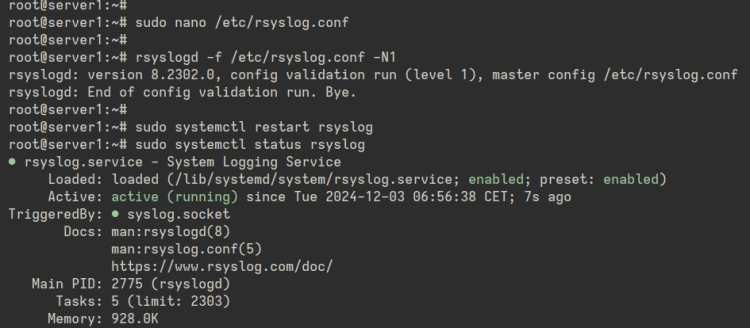
如果没有出现错误,请运行下面的 systemctl 命令以重新启动 rsyslog 服务。
sudo systemctl restart rsyslogd
sudo systemctl status rsyslogd
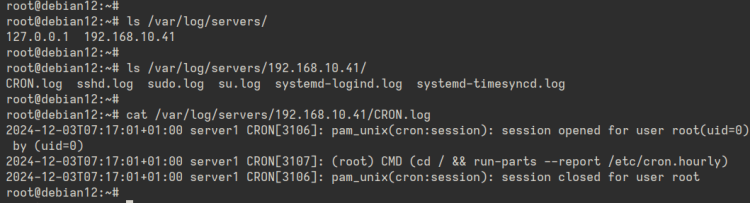
检查 Rsyslog 服务器上的日志文件
检查 /var/log/servers 日志目录。
ls /var/log/servers
可以使用 cat 或 tail 命令检查日志文件,以查看日志的详细信息。
cat /var/log/servers/logfile.log
tail -f /var/log/servers/logfile.log
我的开源项目